BlogAnki how-to
How to use AnkiDecks, step by step
From your lecture file to a checked Anki deck, with every screen explained.
Omar··10 min read
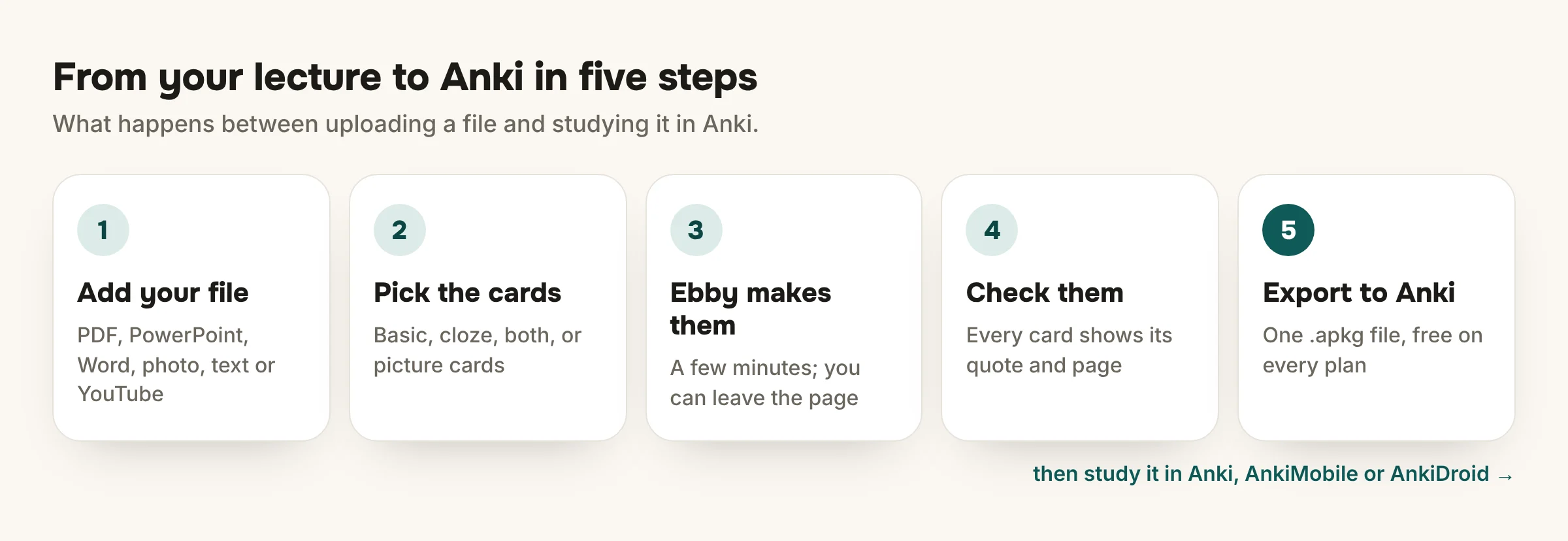
Add your file and press Make cards. Check each card against the page it came from, then export the deck to Anki, free on every plan.
What you need
- A free AnkiDecks account. Sign in with Google or with a 6-digit code sent to your email. No card details.
- Anki to study in. Free on computers and Android, AnkiMobile on iPhone. New to Anki? Start with how to use Anki.
- Your material: a lecture PDF, slides, a Word document, photos of notes, pasted text or a YouTube link.
Step 1: Add your file
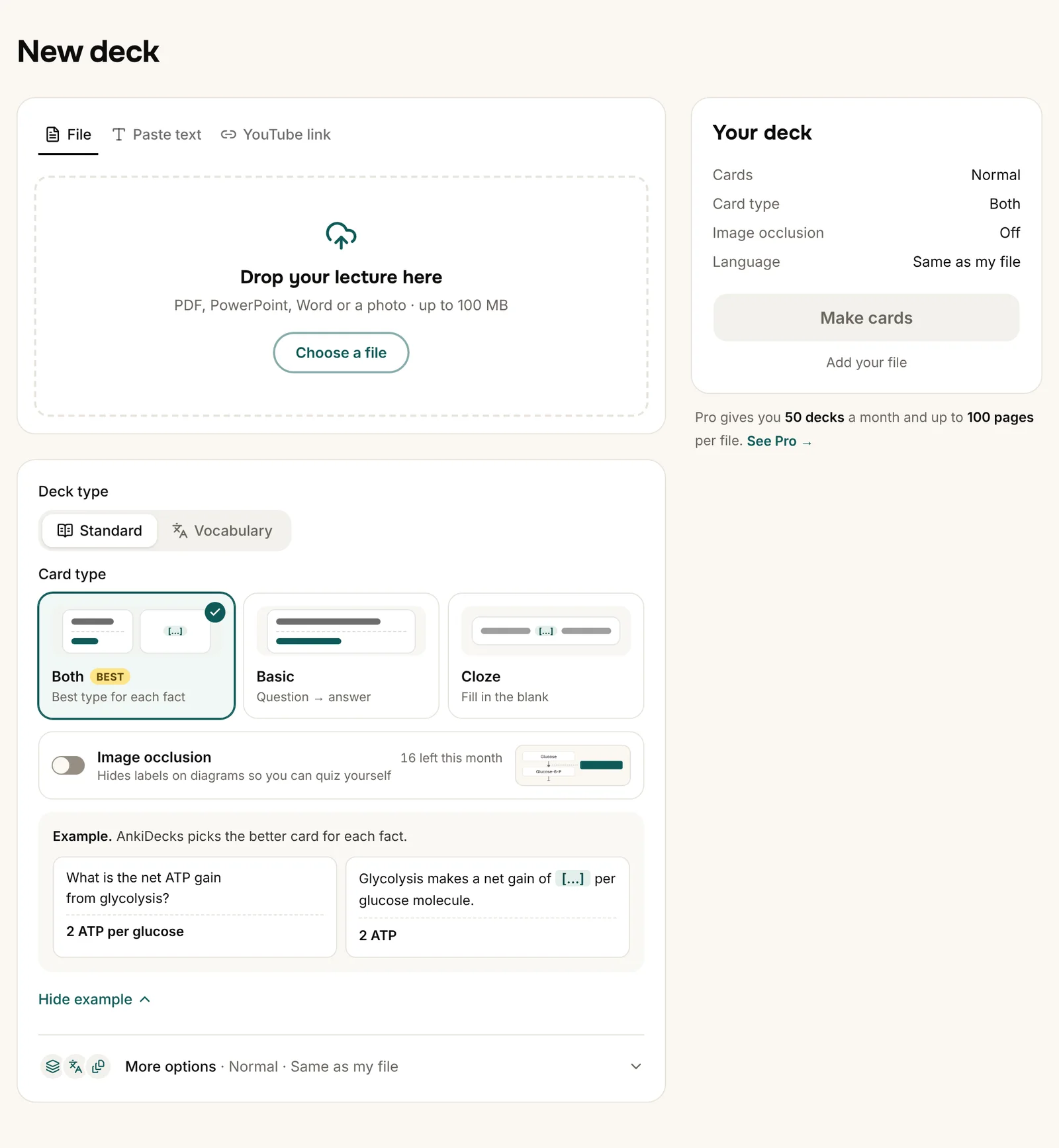
Click New deck. There are three tabs: File, Paste text and YouTube link.
| What you have | What to use | Good to know |
|---|---|---|
| Lecture PDF | File | Scanned pages and handwriting are read too |
| PowerPoint | File (.pptx) | Old .ppt? Save as .pptx first |
| Word notes | File (.docx) | Old .doc? Save as .docx first |
| Photos of notes or a textbook | File (photo) | One photo is one page |
| Keynote | Export to PDF first | File, then Export To, then PDF |
| Notes, a chapter, a transcript | Paste text | About 500 words count as 1 page |
| A YouTube lecture | YouTube link | Public videos with captions (even automatic ones) |
Picking pages
Each deck covers a number of pages: up to 15 on Free, 100 on Pro and 200 on Max. If your file is longer, AnkiDecks shows the pages so you can pick: tap the first page you want, then the last. When that deck is done, it offers the next part (for example “Next deck: pages 16–30”), so a long file becomes a few decks in a row.
A PDF with a password? Open it, choose Print, then Save as PDF, and upload the new copy.
Step 2: Choose your cards
The defaults work for most lectures, so you can press Make cards straight away. If you want to change them:
- Deck type. Standard for facts. Vocabulary for language learning: word cards with the meaning and the real sentence the word was used in.
- Card type. Both (best for most files: AnkiDecks picks a basic or cloze card for each fact), Basic (question → answer) or Cloze (fill in the blank). Not sure which? See cloze vs basic.
- Image occlusion. Switch it on for diagrams: it covers each label so you recall it, then reveal it. Best for anatomy, pathways and maps. Free includes 20 diagrams a month.
- More options. How many cards: Fewer (must-know facts), Normal (every important fact), More (every fact, with details) or Custom. Card language: same as your file, or another language. And the deck name, plus a folder to put it in (like “Cardiology”), which becomes a parent deck in Anki.
Step 3: Ebby makes the cards
Press Make cards. Ebby, our card-making turtle, reads your pages, writes the cards, and checks every quote against your file. Most decks take a few minutes; long, text-heavy files take longer. You can leave the page: we email you if it takes more than 2 minutes.
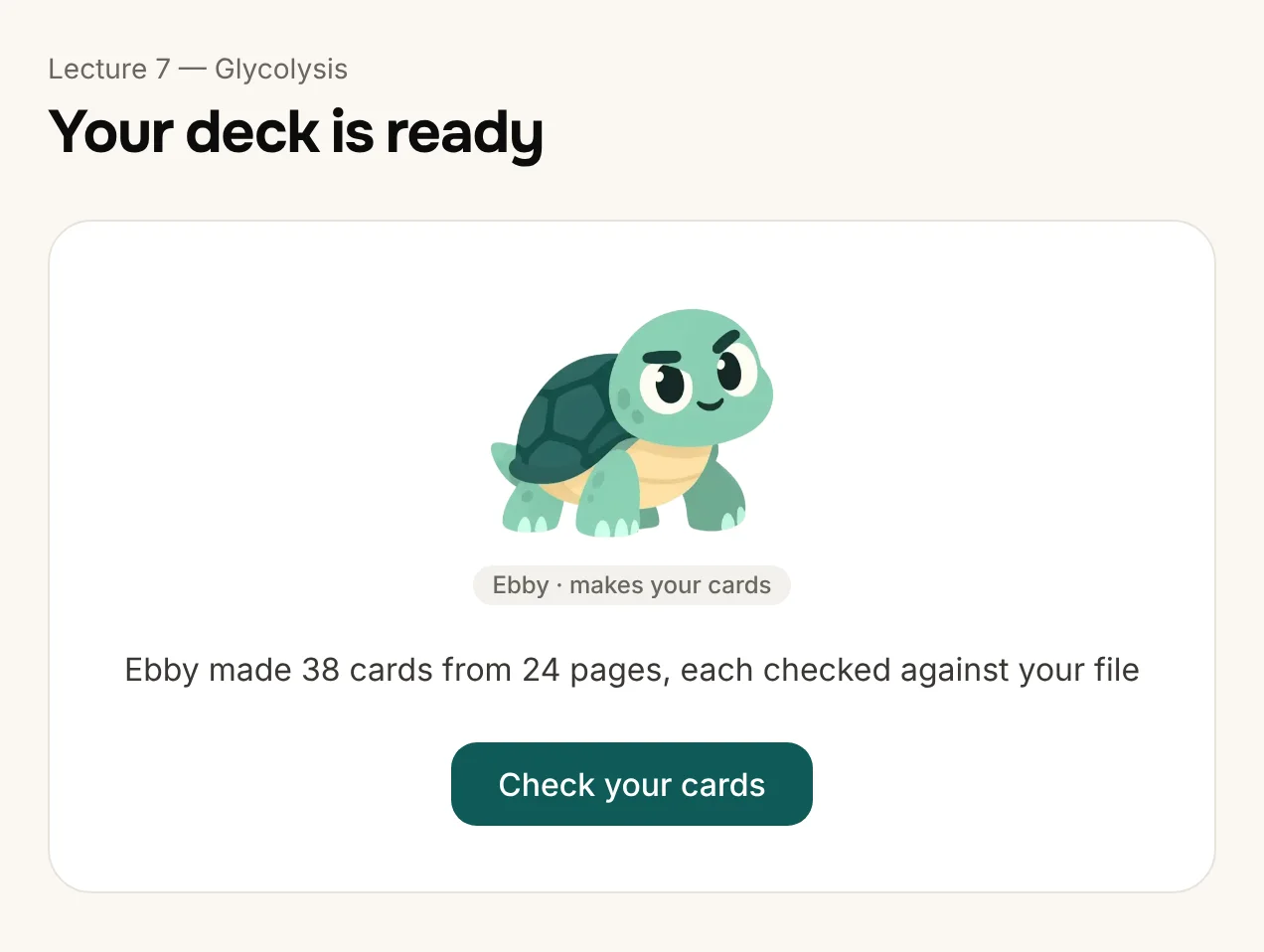
A few things it does for you along the way:
- Skips pages with nothing to learn: tables of contents, reference lists and blank slides.
- Pasted a plain word list? It makes one card per word, with its meaning (you can switch back to normal cards).
- One bad page never fails the deck: it’s retried, and if it still can’t be read it’s listed so you know.
Step 4: Check your cards
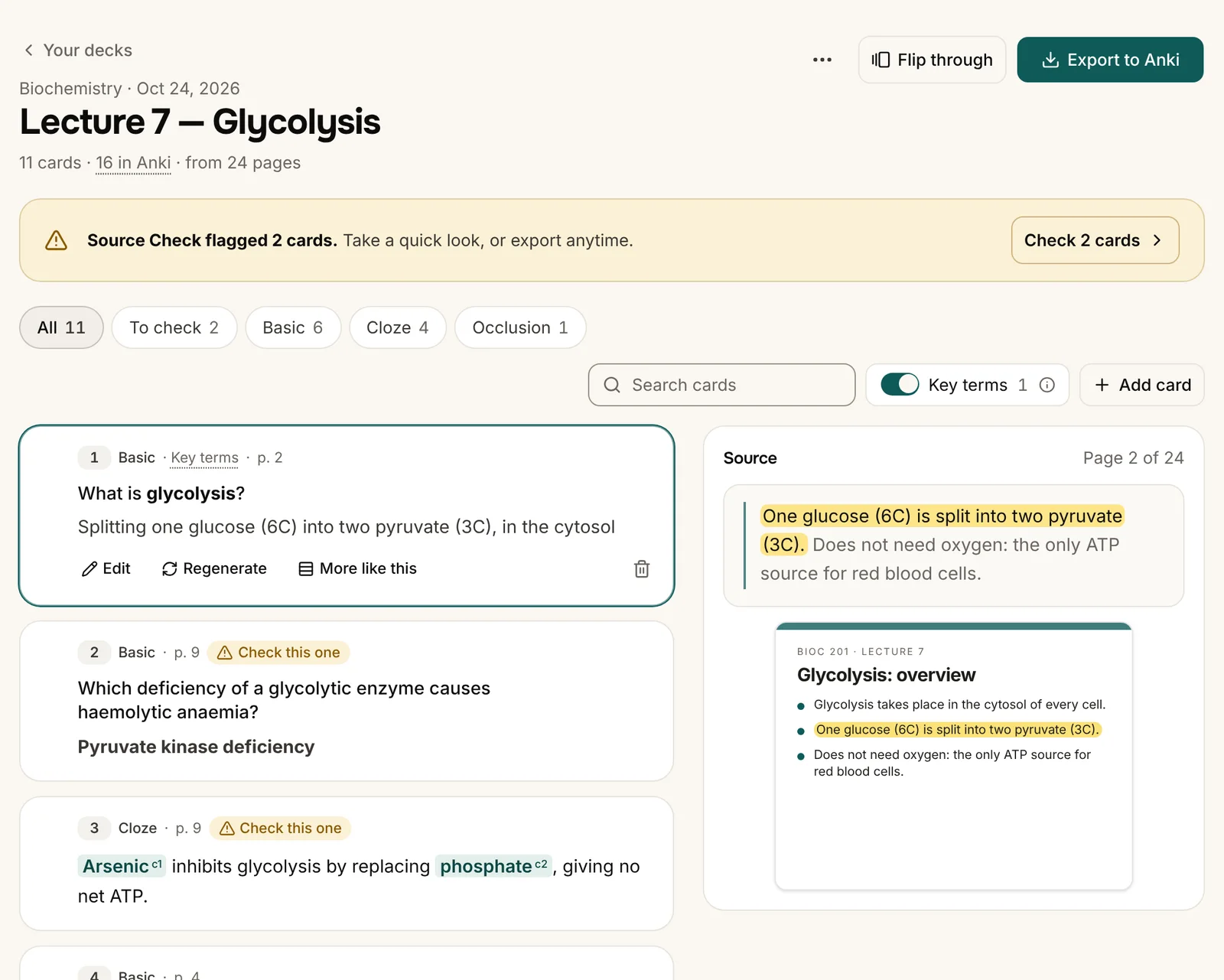
This is the step that makes AnkiDecks different. Click a card and the right side shows where it came from: the exact quote, highlighted on a picture of your page.
Source Check
Before you see anything, Source Check removes any card whose quote isn’t actually in your file. Cards it’s less sure about get a “Check this one” label and show up under To check. Press Check cards to go through just those, one by one: Keep or Remove. Removed by mistake? Undo brings it back.
Fixing a card
- Edit: change the front or back, then Save.
- Regenerate: ask for a new version of that card (you can always go back to the old one).
- More like this: more cards from the same page.
- Delete: the bin icon, with Undo.
- Add card: write your own; it’s marked “Added by you”.
- Key terms: short definition cards for the key terms in your file. Switch them off if you don’t want them in the export.
You can also filter by type (Basic, Cloze, Occlusion), search, or use Flip through to see the cards as you would in Anki. Picture cards let you move, resize or switch off each box over a label.
The count says something like “11 cards · 16 in Anki”. That’s normal: each cloze blank and each hidden diagram label becomes its own card in Anki.
Step 5: Export to Anki
Press Export to Anki.
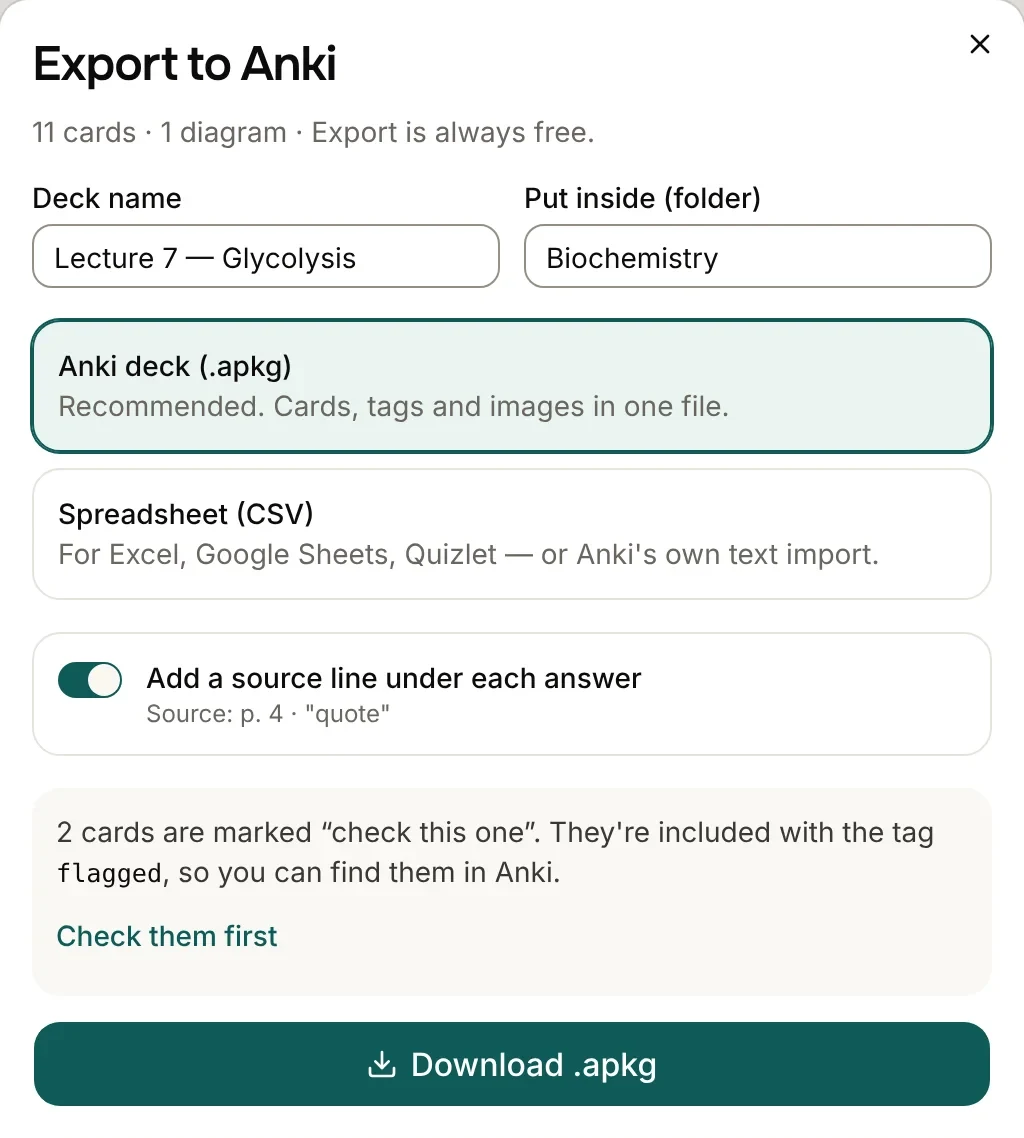
- Anki deck (.apkg) is recommended: cards, tags and pictures in one file.
- Spreadsheet (CSV) is for Excel, Google Sheets or Quizlet. Picture cards need the .apkg.
- Add a source line under each answer puts “Source: p. 4 · quote” on the back of each card in Anki.
- Cards still marked “check this one” get the tag flagged, so you can find them in Anki.
Opening the file
| Where you study | What to do |
|---|---|
| Computer (Anki) | Double-click the .apkg file, or in Anki choose File, then Import |
| iPhone or iPad (AnkiMobile) | Open the file from Files or AirDrop and choose AnkiMobile |
| Android (AnkiDroid) | Tap the file in Downloads and open it with AnkiDroid |
Picture cards need Anki 23.10 or newer, or AnkiDroid 2.17 or newer. Made changes after importing? Export again: Anki updates the cards it already has and keeps your progress (Anki manual). Want everything at once? Account, then Download all decks gives a zip with every deck.
Step 6: Study it in Anki
The deck now appears in Anki (inside its folder, if you gave it one). Click it and press Study Now. One setting worth turning on: FSRS, in Deck options, for better-timed reviews (manual). For the buttons, daily limits and everything else, see how to use Anki.
Tips for a whole semester
- One deck per lecture, all inside one folder per course (“Cardiology”, “Pharmacology”). Anki shows them as one course you can study together or one lecture at a time.
- Make the deck the same day as the lecture. Checking cards is much faster while the lecture is fresh.
- Check the flagged cards first. They’re usually only one or two per deck, and they’re the ones most worth a look.
- Long file? Split it into parts with the page picker; the next part is one click after each deck.
- Don’t upload other people’s personal data, like patient details. Use your own notes and course material.
- Use Claude? You can add AnkiDecks to Claude and make the same decks inside a chat.
Free vs Pro vs Max
| Free | Pro | Max | |
|---|---|---|---|
| Decks a month | 3 | 50 | Unlimited |
| Pages per deck | 15 | 100 | 200 |
| YouTube video length | 10 min | 25 min | 90 min |
| Diagram cards a month | 20 | 300 | Unlimited |
| Export to Anki | Free | Free | Free |
Free is enough to see if it fits how you study. Pro and Max are for whole courses and long files, and they get priority when it’s busy. Prices are on the pricing page. Whatever the plan, your files stay private, are never used to train AI, and are deleted after 30 days.
Make your first deck
Upload one lecture and check the cards against your own pages. The free plan makes 3 decks a month (up to 15 pages each), and downloading to Anki is never paywalled.
Make cards from a lectureFree to try · No credit card needed
Questions
- Is AnkiDecks free?
- Yes. The free plan makes 3 decks a month, up to 15 pages each, with no card limit per deck. Downloading your decks to Anki is free on every plan. Pro and Max add more decks and more pages per file.
- Which files does AnkiDecks take?
- PDF, PowerPoint (.pptx), Word (.docx) and photos, up to 100 MB, plus pasted text and public YouTube videos with captions. Older .ppt and .doc files and Keynote files need saving as .pptx, .docx or PDF first.
- How do I know a card is right?
- Every card shows the exact quote and page it came from, with the line highlighted on a picture of the page. Source Check removes cards whose quote isn't in your file and marks any card worth a second look with 'Check this one'.
- Can I make cards in another language?
- Yes. Cards come out in the language of your file by default, or you can pick another language in More options. Vocabulary decks make word cards with the meaning in the language you choose.
- Does it work on iPhone and Android?
- Yes. You can make decks in your phone's browser, and the exported .apkg opens in AnkiMobile on iPhone and AnkiDroid on Android.
- If I export the same deck again, do I lose my progress?
- No. Exporting again later updates the cards already in Anki and keeps your review progress.
- What happens to my files?
- They stay private, are never used to train AI, and are deleted after 30 days. Your decks and cards stay until you delete them.